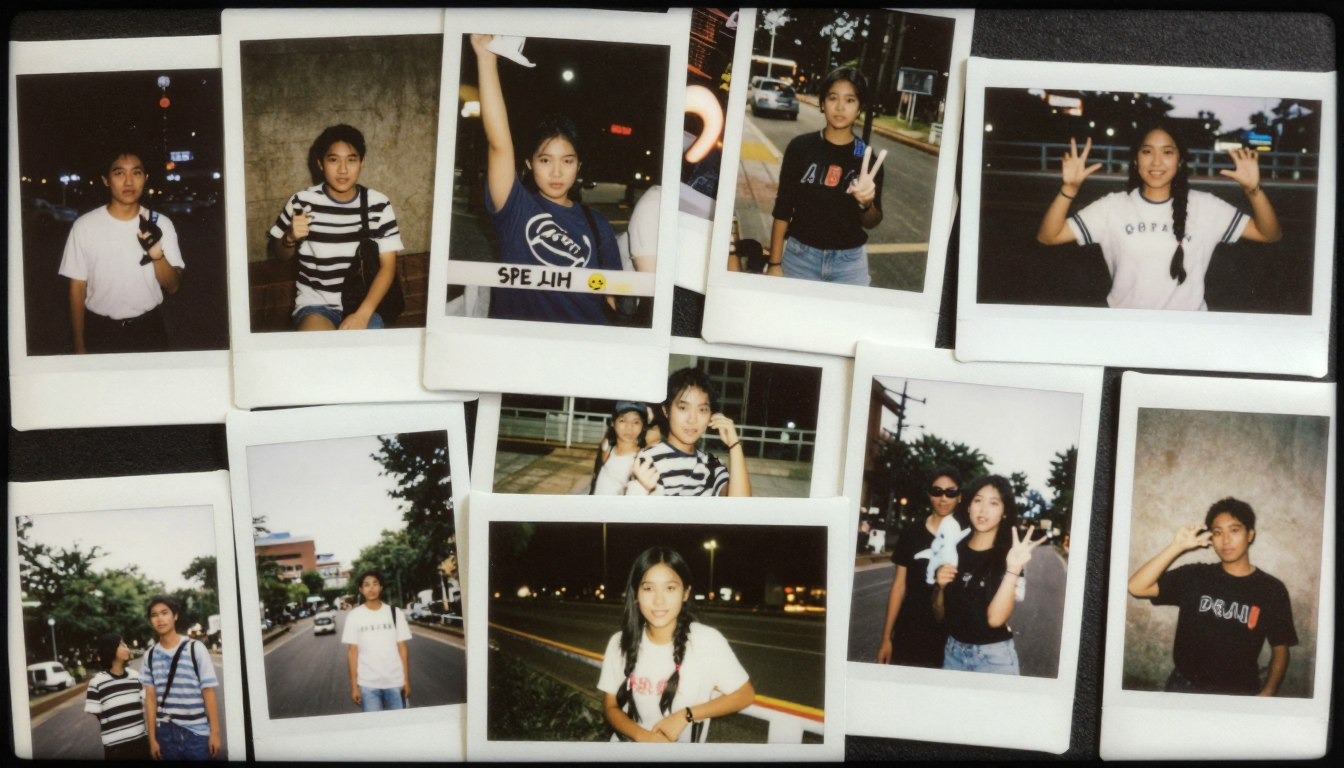
Fuzzy pictures are images that appear soft, unclear or lacking detail even when the subject itself is sharp in real life. This problem affects photos taken on smartphones, digital cameras, scanners and even screenshots. A picture may look acceptable at first glance, but when viewed closely or enlarged, the loss of clarity becomes obvious and frustrating.
Understanding how to fix fuzzy pictures matters because images are used everywhere from personal memories and school projects to professional websites and legal documents. A blurry or soft image can reduce trust distort information and make important details unreadable. In digital environments image quality directly affects credibility and usability.
Fuzzy images commonly appear in everyday situations such as low-light photography, zoomed-in mobile shots, old scanned photos and compressed images downloaded from the internet. They also occur when images are resized incorrectly or displayed on high-resolution screens. Knowing why this happens is the first step toward restoring clarity and preventing future issues.
What Fuzzy Pictures Really Are and How They Differ From Blurry Images
Fuzzy pictures are often confused with blurry images, but the two are not always the same. Blur is usually caused by motion, camera shake or missed focus, while fuzziness often comes from low resolution, poor image processing or compression artifacts. A fuzzy image may be in focus but still lack crisp edges and fine detail.
This distinction matters because the solution depends on the root cause. Motion blur requires stabilization or retaking the photo, while fuzziness can sometimes be improved with sharpening, resolution enhancement or proper resizing. Treating all unclear images the same way often leads to disappointing results.
In real-world use, fuzzy images are common in digital uploads, social media downloads, and scanned documents. These images may look fine on small screens but degrade when printed or enlarged. Recognizing the specific characteristics of fuzziness helps in choosing the correct correction method.
Common Causes of Fuzzy Pictures in Digital Photography
Low Image Resolution and Pixel Limitations
One of the most common causes of fuzzy pictures is low image resolution. When a camera captures too few pixels, the image lacks enough data to display fine details clearly. This often happens with older devices, heavily cropped photos or images saved using reduced quality settings where visual information is permanently lost.
Low-resolution images may look acceptable on small screens but quickly fall apart when enlarged. Edges appear soft, textures disappear, and fine details become indistinct. Once resolution data is missing, even advanced editing tools have limited ability to restore true sharpness.
Image Compression and File Format Loss
Compression is another major factor that contributes to fuzzy pictures. Formats such as JPEG reduce file size by removing visual data that the algorithm considers less important. While this makes images easier to store and share, it can introduce softness, blocky artifacts and reduced edge clarity.
Repeated saving, exporting, or downloading compressed images worsens the problem over time. Each compression cycle removes more data, causing the image to gradually lose definition. This is especially common with images shared across messaging apps or social media platforms.
Lighting Conditions and Automatic Camera Processing
Environmental conditions also play a significant role in image fuzziness. Poor lighting forces cameras to increase ISO sensitivity, which introduces digital noise into the image. To compensate, camera software often applies noise reduction automatically.
While noise reduction helps smooth grain, it can unintentionally blur fine details and textures. This smoothing effect reduces clarity, making images appear soft even when focus is technically correct. Low-light environments are one of the most common triggers for this type of fuzziness.
How Screen Size and Scaling Make Images Look Fuzzy
Upscaling Small Images Beyond Their Native Size
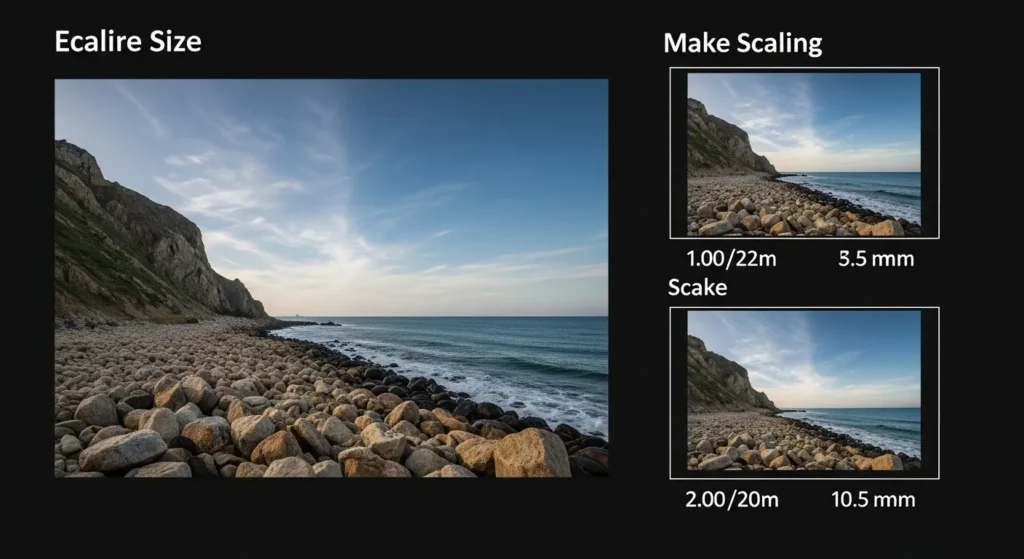
Images can appear fuzzy when they are displayed larger than their original dimensions. When a small image is stretched to fill a large screen, the software must generate additional pixels that were never captured. This process, known as upscaling, results in softened edges, reduced detail and sometimes jagged outlines.
Upscaling issues are especially noticeable on high-resolution monitors, where pixel density is high. Images that look acceptable on smaller screens often lose clarity when expanded revealing their limited original resolution.
Improper Downscaling and Loss of Fine Detail
Downscaling can also cause fuzziness if not handled correctly. When an image is reduced in size without proper resampling, important visual information may be discarded. Fine textures, sharp edges and small details can blur or disappear entirely.
This problem commonly occurs when images are uploaded to websites or social media platforms that automatically resize files. These systems prioritize speed and consistency over image quality which can negatively affect clarity.
Matching Image Resolution to Display Requirements
Understanding how scaling works is essential when preparing images for different formats and screens. An image that appears sharp on a smartphone may not retain the same quality on a desktop monitor or in print. Each display medium has different resolution requirements.
Matching image resolution to its intended use prevents unnecessary fuzziness. Preparing separate image versions for web, mobile, and print ensures that clarity is preserved without relying on aggressive scaling.
What Tools Can I Use to Fix Fuzzy Pictures?
| Need | Recommended Tool | Price |
| Instant AI Fix | Remini / Topaz Photo AI | Paid/Freemium |
| Old Photo Scuffs | Adobe Photoshop (Healing Brush) | Subscription |
| Quick Phone Edit | Snapseed | Free |
| Text Readability | VanceAI | Paid |
Fixing fuzzy pictures requires the right software and apps. Depending on your needs, you can choose free editors, mobile apps, professional software, or AI-powered tools. Each type of tool offers unique ways to sharpen images, reduce noise, and restore details.
Free Software Can Improve Image Clarity
Free photo editors can enhance your images without spending a dime. These programs often include advanced editing features similar to professional software, such as layers, masks and filters.
- Web-based photo editors: Perfect for users who don’t want to install software. They allow you to adjust brightness, contrast and sharpness easily.
- Open-source image editors: These are powerful tools for fixing blur and artifacts. They are free, community-supported, and offer advanced photo manipulation.
Mobile Apps Help Sharpen Blurry Photos
Mobile apps let you fix fuzzy pictures directly on your phone. Many apps include sharpening tools, noise reduction, and color correction features. Use apps that offer AI-enhanced editing for quick results. They are excellent for portraits and casual photography.
Professional Programs Offer Advanced Photo Restoration
For detailed or high-resolution images, professional software provides precision controls for sharpening, retouching and RAW editing. Advanced desktop editors give you more control over individual elements in your photos. You can fix fuzzy areas selectively without affecting the rest of the image.
AI Tools Restore Fuzzy Pictures
AI-powered tools are transforming photo restoration. They use machine learning and neural networks to detect blur, noise, and missing details, then intelligently enhance the image. AI photo enhancers are especially effective for portraits, low-light images, and scanned photos. These tools automatically sharpen faces, reduce noise, and restore clarity.
Fix Fuzzy Pictures Using Proper Image Sharpening Techniques
Sharpening is one of the most effective ways to fix fuzzy pictures when used correctly. It works by increasing contrast along edges, making details appear clearer to the human eye. However, over-sharpening can create halos and unnatural textures, which reduces image quality.
Effective sharpening requires restraint and precision. Applying light sharpening selectively to important areas, such as faces or text, produces better results than global sharpening. Many image editing tools offer adjustable radius and strength controls for this reason.
In practical use, sharpening is best applied at the final size of the image. Sharpening before resizing can lead to inconsistent results. When done properly, sharpening restores perceived clarity without introducing visible artifacts.
The Role of Noise Reduction in Fix Fuzzy Pictures
Noise reduction is designed to remove visual grain caused by high ISO or low light conditions. While useful, excessive noise reduction can soften edges and fine textures, leading to fuzzy results. This trade-off is a common issue in automatic camera processing.
Balancing noise reduction and sharpness is key. Reducing noise selectively in shadow areas while preserving detail in highlights produces more natural results. Many editing tools allow localized adjustments for this purpose.
In everyday photography, understanding this balance helps prevent fuzzy images before they occur. Using better lighting or lower ISO settings reduces the need for aggressive noise reduction, preserving natural clarity.
Improving Fuzzy Images by Correcting Resolution and Size
Resolution plays a central role in image clarity. A higher-resolution image contains more pixel data, which allows finer details to be displayed. When working with fuzzy pictures, ensuring the image is saved at an appropriate resolution is critical.
Resizing should always be done carefully. Increasing image dimensions without proper algorithms will not add real detail and often makes fuzziness worse. Some modern tools use advanced interpolation to improve results, but limitations still exist.
For practical applications, it is best to work with the original image file whenever possible. Editing a compressed or resized copy limits how much improvement can be achieved. Proper resolution management preserves image quality across different uses.
Fixing Fuzzy Pictures in Scanned Photos and Documents
Scanned images often appear fuzzy due to low scanning resolution or improper settings. Text and fine lines suffer the most, making documents difficult to read. Choosing the correct DPI setting during scanning is essential for clarity.
Post-scan processing can improve results. Adjusting contrast, sharpness, and levels helps define edges and text. However, scanning at a higher resolution from the start yields better outcomes than trying to fix low-quality scans later.
In professional and academic settings, clear scanned documents are critical for accuracy and readability. Understanding scanning fundamentals ensures that important information is preserved without unnecessary fuzziness.

Preventing Fuzzy Pictures When Taking Photos
Prevention is often more effective than correction. Using proper focus techniques ensures that the subject is sharp at the moment of capture. Touch focus on smartphones or manual focus on cameras improves accuracy.
Stability also matters. Camera shake introduces softness that cannot always be fixed later. Using both hands, stabilizing against a surface or using a tripod reduces unwanted movement.
Lighting conditions should not be overlooked. Adequate light allows the camera to use faster shutter speeds and lower ISO values, producing clearer images with less noise and fuzziness.
Understanding the Limits of Fixing Fuzzy Pictures
While many fuzzy images can be improved, not all can be fully restored. Images that lack sufficient original data cannot regain details that were never captured. This limitation applies to heavily compressed or extremely low-resolution files.
Realistic expectations are important. Enhancement tools can improve perceived sharpness, but they cannot recreate lost information perfectly. Knowing when an image has reached its improvement limit saves time and frustration.
In professional workflows, this understanding guides decisions about retaking photos, requesting higher-quality originals, or adjusting usage expectations. Accepting technical limits leads to better outcomes overall.
Conclusion
Fuzzy pictures are a common issue with clear technical causes, ranging from low resolution and compression to scaling and noise reduction. Understanding these causes allows users to choose effective correction methods rather than applying random fixes. Clarity improves when the right technique matches the right problem.
Learning how to fix fuzzy pictures also improves future image capture. Better focus, lighting, and resolution choices prevent many issues before they occur. This proactive approach saves time and preserves image quality across different uses.
Ultimately, image clarity depends on both technical limits and informed handling. By recognizing what can and cannot be fixed, users make smarter decisions about editing, usage, and prevention. Clear images support better communication, stronger credibility, and more reliable visual information.
FAQs
Why do my pictures look fuzzy after uploading them online?
Many platforms automatically compress and resize images to save bandwidth. This process removes image data and can soften details. Uploading images at the recommended resolution and format reduces this issue.
Can fuzzy pictures be completely restored to original quality?
Complete restoration is not always possible if the original image lacks detail. Enhancements can improve clarity, but they cannot recreate information that was never captured by the camera or scanner.
Why do photos look sharp on my phone but fuzzy on my computer?
Phones display images on smaller, high-density screens where flaws are less visible. When viewed on larger monitors, limited resolution and compression become more noticeable.
Does converting image formats help fix fuzziness?
Format conversion alone does not improve quality and may worsen it if compression is applied. Choosing the right format at the time of saving helps preserve clarity.
Are fuzzy pictures always caused by camera problems?
No, fuzziness can result from editing, resizing, compression, or display issues. The camera is only one part of the image quality chain.
How can I tell if an image is truly low resolution?
Zooming in reveals pixelation and soft edges if resolution is low. Checking the image dimensions and DPI also provides clear indicators.