
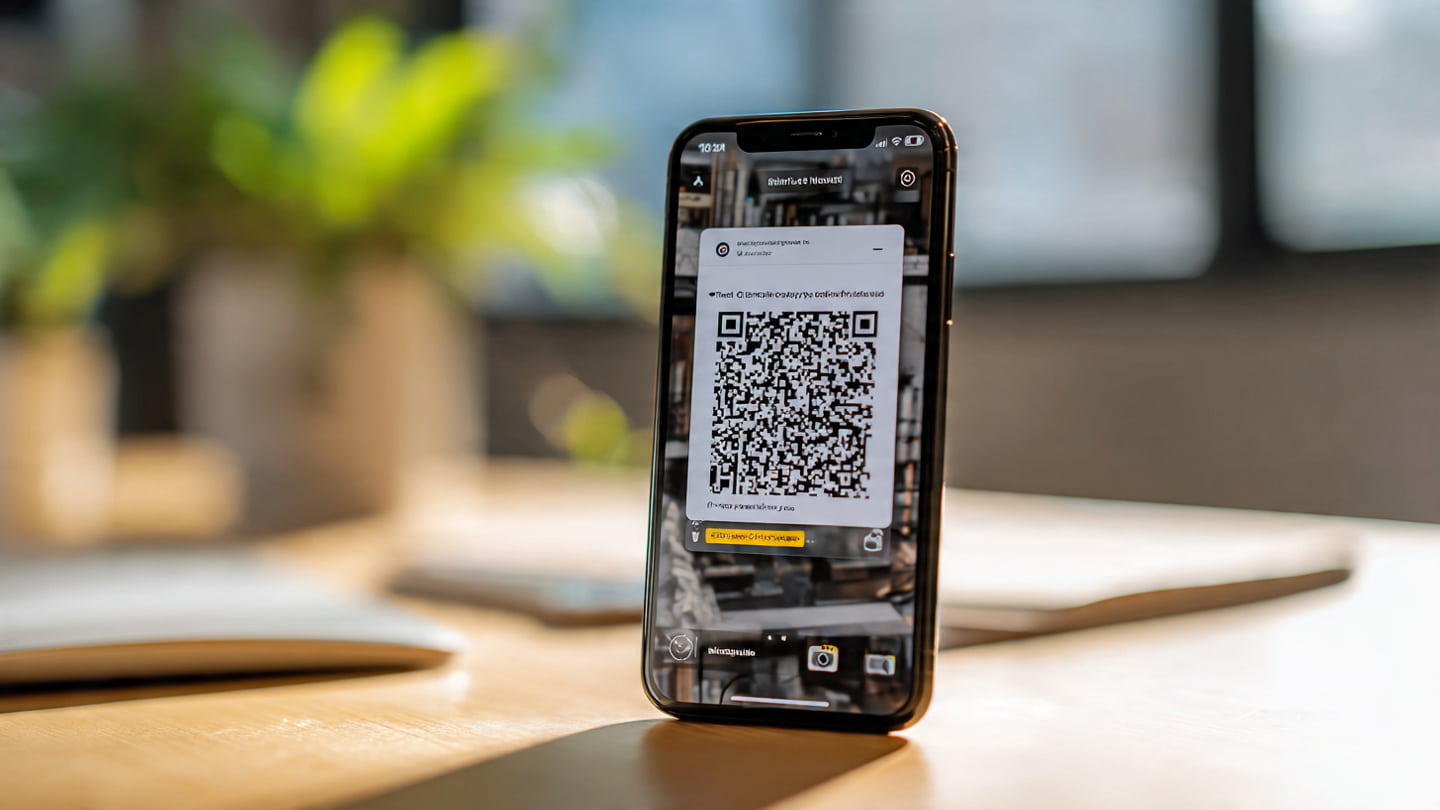
Imagine this. You are standing outside a cafe and you want to check today’s menu. The only thing in front of you is a small square code stuck on the window. You lift your phone. Tap the camera. The code appears inside the frame. A second later the entire menu opens on your screen. No typing. No searching. Just tap and go.
That is the entire philosophy behind QR code scanners. They remove friction from daily life. They help you connect to WiFi without asking for passwords. They help you check in at events. They help you open restaurant menus. They help you download apps. They help you make payments. They help you move from physical to digital in one snap.
Today QR codes are more powerful than ever. Smartphones now scan them natively. Laptops can scan them with webcams. Online scanners extract information from screenshots. Even blurred codes can be repaired with AI. This guide explains everything you need to know about using a QR code scanner in 2025. It is beginner-friendly and written in a simple continuous way so anyone can follow it clearly.
Let’s start.
What Is a QR Code Scanner
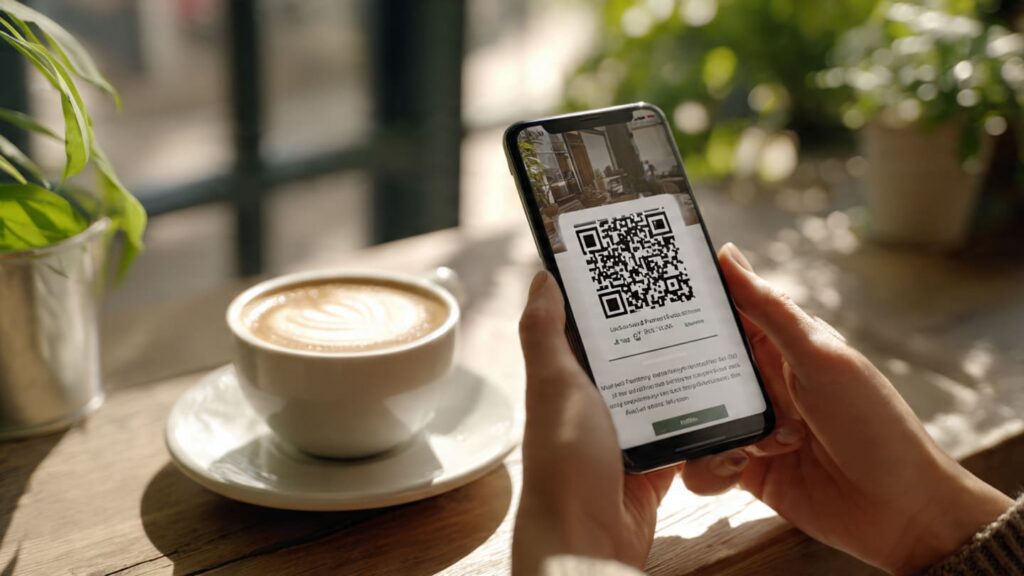
A QR code scanner is a tool that reads the information inside a small square pattern. This pattern can include a link or a login or a WiFi password or a message. A scanner can be your phone camera or a laptop webcam or an online scanning website or a dedicated qr code scanner apk.
When you point your device toward a QR code the scanner reads the dark and light pattern and opens the information immediately. Some scanners also detect broken or low quality codes by enhancing the pattern before reading it.
The best thing is that you do not always need extra apps. Most modern devices already have QR scanning features built into the camera. If your phone is old or the code is damaged you can still scan it through gallery apps or online tools.
How Do You Scan A QR Code With Your Phone
Most people scan QR codes with the default camera app. Open your phone camera and hold it steady toward the code. Keep the QR code in the center. A small popup appears at the bottom or top of the screen tap that popup and the link opens.
If you ask how to scan a qr code on my phone the answer is simple. Open the camera and let it detect the code automatically. If nothing appears clean the lens and increase the light level. Also check if the QR code is damaged. Some codes lose readability when printed in low resolution or when placed under reflective surfaces.
Many people also ask where is the qr code on my phone because they think their phone has its own code. Phones do not come with built in QR codes. You only scan external codes or codes shown on screen.
How To Scan QR Code With Android Phone
Android phones make scanning extremely easy. Open the camera and point it toward the QR code a small link prompt appears. Tap it and open the website or information.
Some older Android phones do not detect QR codes through the default camera. In this case tap the Google Lens icon. Google Lens scans the pattern and shows a preview.
If you want to scan qr code from image files open Google Photos and select the picture. Press and hold it. A Lens icon appears. Tap it and the scanner reads the QR code inside the picture. This method helps when you receive QR codes through WhatsApp Telegram Messenger and email screenshots.
How To Scan A QR Code On Android Without An App
Most new Android devices do not need any third party app. Open the camera and hold it steady. If the phone still does not scan you can open the Google app and tap the Lens icon.
This works even without installing anything extra. Some brands like Samsung and Xiaomi also place a Scan QR option inside the Quick Settings panel for instant access.
How To Scan QR Code On iPhone
iPhones have the simplest scanning method. Open the camera. Hold the phone still. A yellow box appears around the QR code. A link appears at the top of the screen tap it and open the page. iPhone users do not need any special app at all.
If you want to scan qr code from picture open the Photos app. Tap the share button. You will see a scan option in the menu. The phone reads the QR code inside the image. This is useful when you have screenshots of payment codes and login codes or event tickets.
How To Scan QR Code On Computer
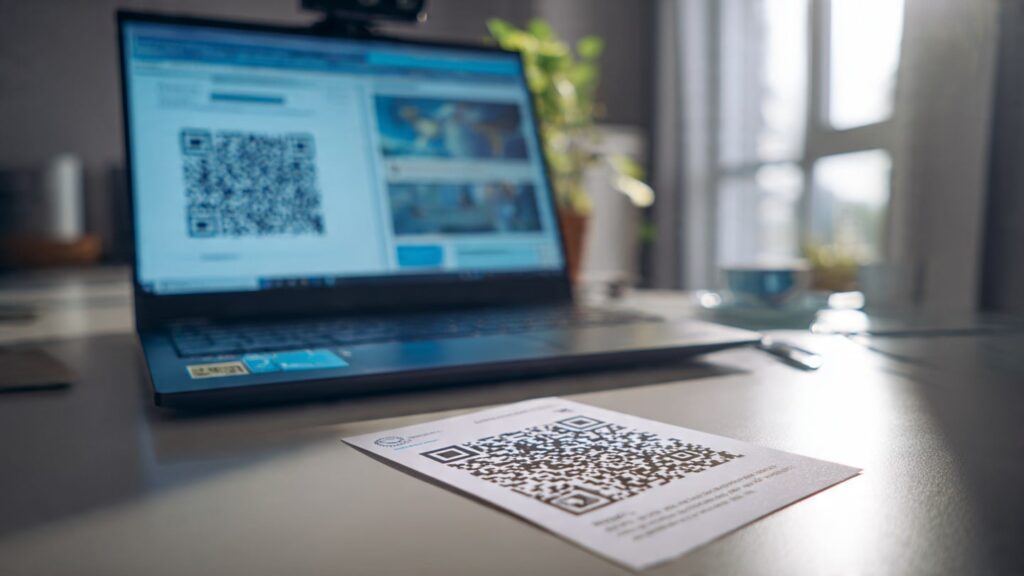
Many people feel confused when they try to scan qr code on computer devices. A computer does not have a built in camera app that scans codes automatically but you can use a web based scanner. Open the site and allow webcam access. Hold the code in front of the webcam. The site reads the QR code and shows the result on the screen.
If you do not want to use a webcam you can scan qr code from screenshot by uploading the image to the website. This method is safe when scanning product codes or digital tickets on Windows and Mac.
Can You Scan A QR Code On A Laptop
Yes you can. Many laptops have webcams that can read QR codes when you use a web based scanner. Go to a trusted scanner website. Allow webcam access. Hold the QR code at the right distance. If the image is too close the camera cannot read it. If it is too far the pattern becomes unclear. Find the balance and the scanner will decode the QR code instantly.
If the laptop does not have a webcam or if the webcam is low quality you can upload the image file. This works even better because the scanner reads the QR code directly from the picture.
Scan QR Code From A Picture Or Saved Image
Many users search for scan qr code from picture options because they receive codes through WhatsApp and Telegram. You can open the image in your gallery and tap the scan option. Google Photos also reads QR codes through Google Lens. iPhone Photos also reads QR codes from the share menu.
Online scanners also allow image upload. You can select any picture from your laptop or phone storage and the site reads the QR code inside it. This helps when you take screenshots of codes or store passes in your gallery and Scan QR Code From Image or Screenshot.
Where Is the QR Code on My Phone
This question appears when someone wants their own phone to display a QR code such as for WhatsApp login or payment apps. The QR code is always inside the app that generates it. It is not inside your phone settings. For example WhatsApp Web shows it inside the WhatsApp menu. Google Pay or Easypaisa show it inside payment settings.
Best Free Online QR Code Scanners To Use Now
Online scanners are useful when your phone camera refuses to read QR codes. These scanners support webcam reading and image upload. They are simple and work on Windows Mac and Linux. They detect damaged low light or low contrast QR codes. Some scanners also support batch scanning which lets you upload many images at once.
These scanners are safe as long as you use trusted websites. Avoid platforms that ask for unnecessary permissions. Choose scanners that clearly state that they do not save your images.
Why Your QR Code Fails To Scan
Many people wonder why wont my qr code scan even when the code looks normal. Several reasons cause failure.
The code might be printed in low resolution. The surface might be reflective and the camera catches glare. The phone might be shaking slightly. The lighting might be too low. The code may also be damaged or partially covered.
If the code is on a phone screen increase brightness. If the code is on paper hold it straight and avoid bending. If the code is extremely small zoom in with another device and try again.
Step By Step Guide To Fix QR Codes That Do Not Scan
These steps fix most scanning issues.
- Clean your camera lens.
- Hold the phone or device steady while scanning.
- Adjust the distance between the camera and the QR code.
- Increase the brightness on the device displaying the QR code.
- Move away from direct sunlight or glare.
- Flatten printed QR codes before scanning.
- Adjust the angle if using a laptop or external camera.
- Use a flashlight in low light conditions.
- Crop the QR code from images before scanning.
- Use an online or app-based QR code scanner if needed.
- Check the QR code quality and clarity.
- Test scanning with another device to isolate the problem.
Pro Tip: Always test QR codes after printing or generating them digitally. Even small smudges, folds, or low-resolution images can cause scanning failures. Using these steps systematically will fix 95% of scanning problems.
What Is The Best QR Code Scanner App
If your device struggles you can install a trusted qr code scanner apk. A good scanner app reads codes instantly. It supports scanning from images. It gives flashlight control for dark areas. Some scanners detect risky links and block them. Advanced scanners also support WiFi QR code creation and batch scanning.
Choose apps with high ratings and simple interfaces. Avoid apps with too many ads or unknown permissions.
Do You Need A Special Scanner For Custom QR Codes
Custom QR codes have colors logos and shapes. Many people think they need a special scanner for custom QR codes. In reality standard QR code scanners read custom codes as long as the main dark and light pattern remains visible. If the center logo covers too much area the code fails. A good rule is to keep the central blank region small and keep enough contrast.
Comparison Table: Online Scanner vs Phone Camera vs APK
| Feature | Phone Camera | Online Scanner | QR Code Scanner APK |
| Requires installation | No | No | Yes |
| Works on laptop | No | Yes | No |
| Scans from image | Yes using Lens | Yes | Yes |
| Advanced repair | Medium | High | High |
| Offline use | Yes | No | Yes |
| Best for | Daily scanning | Desktop use | Professional tasks |
How To Create A WiFi QR Code With Hidden SSID
A WiFi QR code makes connection simple for guests. You enter the network name and password in a generator and the tool creates a QR code. When someone scans it their device connects automatically without typing anything.
How to include hidden SSID
If your network SSID is hidden tick the Hidden SSID option before generating the QR code. Some readers require advanced scanning to connect to hidden networks. The code still works but your phone may ask for confirmation.
How To Scan A WiFi QR Code
Scanning a WiFi QR code is the same as scanning any other QR code. Open your camera. Hold it over the code. A WiFi popup appears. Tap it to connect automatically. This works on Android and iPhone. Some Android models need you to open WiFi settings first.
How To Scan QR Codes With Broken Or Blurry Patterns
Broken QR codes often appear on old posters or product labels. You can still scan them using these steps.
Increase brightness. Increase distance. Move the device slowly. Try scanning from a different angle. Use a scanner that supports image enhancement. If scanning from an image edit the picture by increasing contrast. Crop the QR code and upload it to an advanced online scanner.
Security and Privacy When Using QR Code Scanners
Modern QR codes can contain malicious links but scanning itself is safe. The risk comes only when you tap the link. Avoid scanning unknown payment codes. Avoid scanning in crowded events. Use browsers with safe browsing enabled. Web based scanners do not store your images if they follow privacy guidelines.
Final Thoughts
QR scanning has become one of the simplest ways to connect the physical world with the digital one. Whether you want to join WiFi or open a link or decode a screenshot or scan from your laptop the process is easy and fast. This guide gives you every tutorial troubleshooting technique WiFi configuration method case study image extraction tip and advanced FAQ you need to handle any QR code in daily life.
FAQs
Which scanners work with webcam on desktop?
Any browser based scanner that supports webcam permissions can read QR codes. You simply allow camera access and show the code in front of the webcam.
Are there privacy risks using web QR scanners?
Most online scanners do not store images. Only avoid scanners that ask for unnecessary permissions or redirect you to unsafe links.
How to extract QR image?
Crop the QR portion from your screenshot. Upload to an online scanner. Use AI based extractors if the code is faint or distorted.
How to improve scan accuracy?
Use good lighting. Increase screen brightness. Move your phone slightly back. Clean your camera lens. Straighten the angle. Use AI assisted apps.
Why won’t my QR code scan?
The QR code may not scan if the lighting is poor, the code is damaged, the camera is out of focus or the link behind the code is broken.






One Comment